
The green lane route planner on Holloway just got a round of upgrades, and every one of them came from a tester riding with it and telling us where it got in the way. You can now reverse a whole route in one tap, see which way you'll ride each lane, flip any lane that's going the wrong way, start from wherever you're standing, and keep the road links off motorways.
Here's what's changed and how to use it.
Reverse the whole route in one tap
Planned a loop and fancy riding it the other way round? There's now a Reverse route button at the top of the route plan. It turns the whole thing round: the order of the lanes and the direction you ride each one. Tap it again and you're back where you started.
It's more useful than it sounds. A lane that's a gentle climb one way can be a steep, loose descent the other, and on a wet day that can be the difference between a good ride and a bad one.
See which way you'll ride each lane
Every lane on your route now has an arrow on the map showing the direction you'll ride it. Before, the only way to tell was to look at where the grey road links joined, which is fine on one lane and hopeless on six.
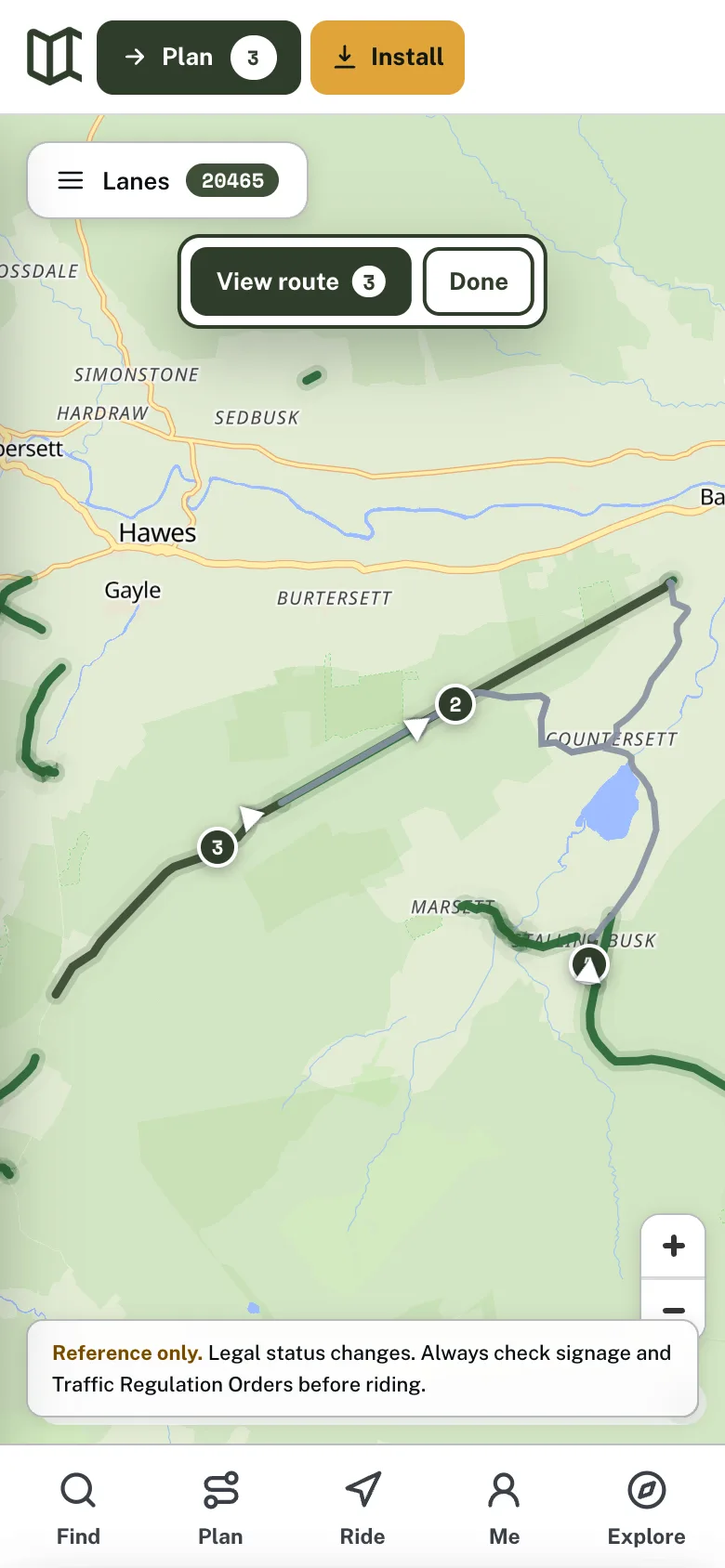
Numbered stops, direction arrows, and the new View route and Done bar along the top. This is the Cam High Road near Hawes.
Flip a lane that's going the wrong way
Holloway picks each lane's direction from the lanes either side of it, which is right most of the time. When it isn't, every lane in the route list now has a clear Flip button. Tap it and that lane turns round, the arrow on the map turns with it, and the road links re-route to match.
The flip was there before, but as a tiny arrow symbol that only explained itself if you hovered a mouse over it, so on a phone most people never found it. That one's on us.
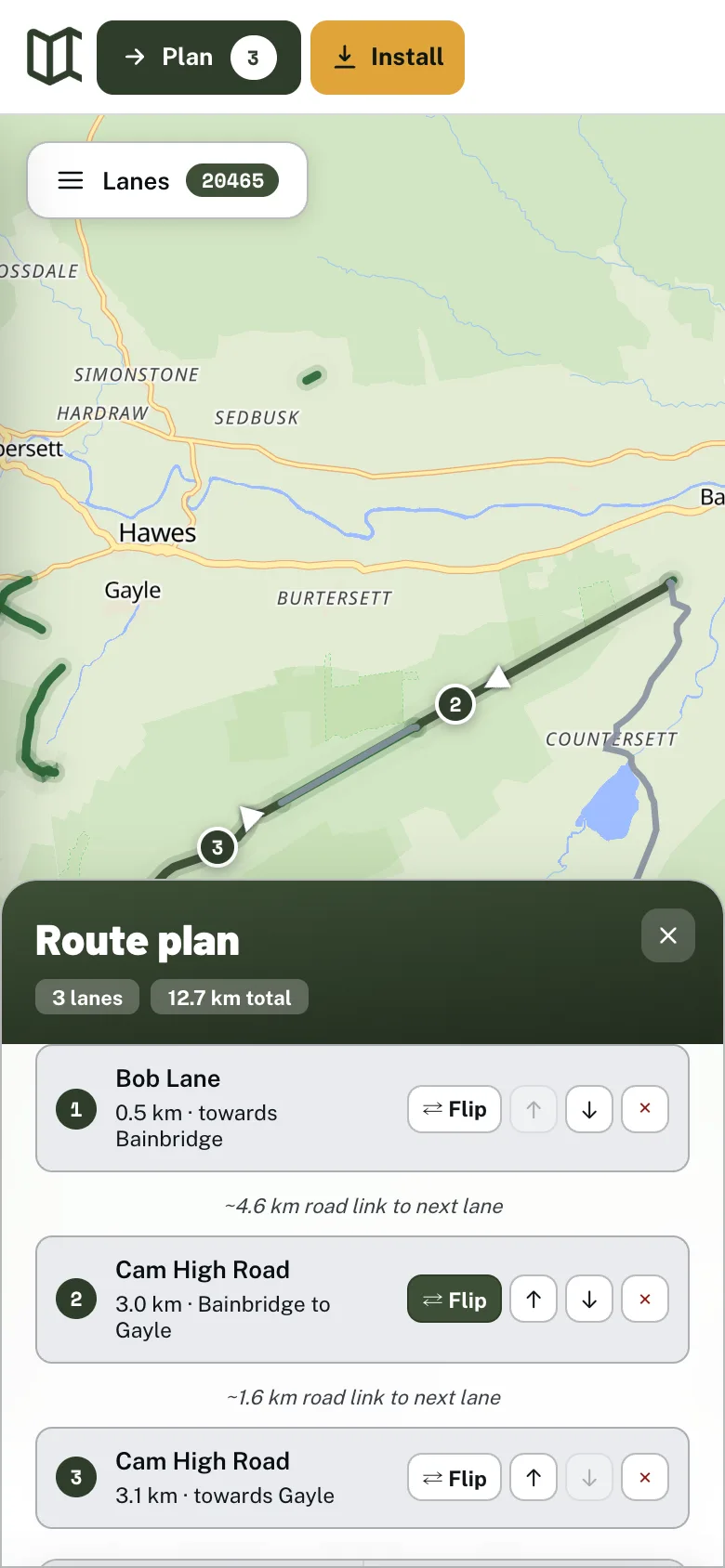
Each lane now says where it runs, "Bainbridge to Gayle", and Flip is a proper button. The highlighted one has been flipped.
Tell lanes with the same name apart
Lots of lanes are recorded in several sections with the same name. Cam High Road, the Ridgeway and plenty of others show up two or three times in a route, which made reordering them a guessing game. Each lane in the list now says where it runs, by village: "Bainbridge to Gayle" or "towards Bainbridge". It also tells you at a glance whether it's heading the way you expect.
Start from where you are
Next to Start from home there's now Start from my location. It uses your phone's GPS to route you from wherever you're parked or stopped to the first lane. It's only used for that one plan: it doesn't replace the home postcode you've saved, and it isn't stored on your account.
Keep the road links off motorways
Holloway works out the road links between lanes automatically. There's now an Avoid motorways on road links tick box, which also covers the run from your start to the first lane. It's handy on a trail bike, or anything you'd rather not hold at 70 mph. Testing it on a run from Milton Keynes to Leicester, the normal route used 31 km of M1, and with the box ticked it used none. Holloway remembers your choice for next time.
Get back to your route, or put it away
While you're planning, a bar along the top of the map now gives you View route, which opens your list, and Done, which takes you back to the normal map. Your route is kept either way, so you can stop planning, look around, and pick it up again later. There's also a Done planning button in the route plan itself. If you want to start again from scratch, Clear route is still at the bottom.
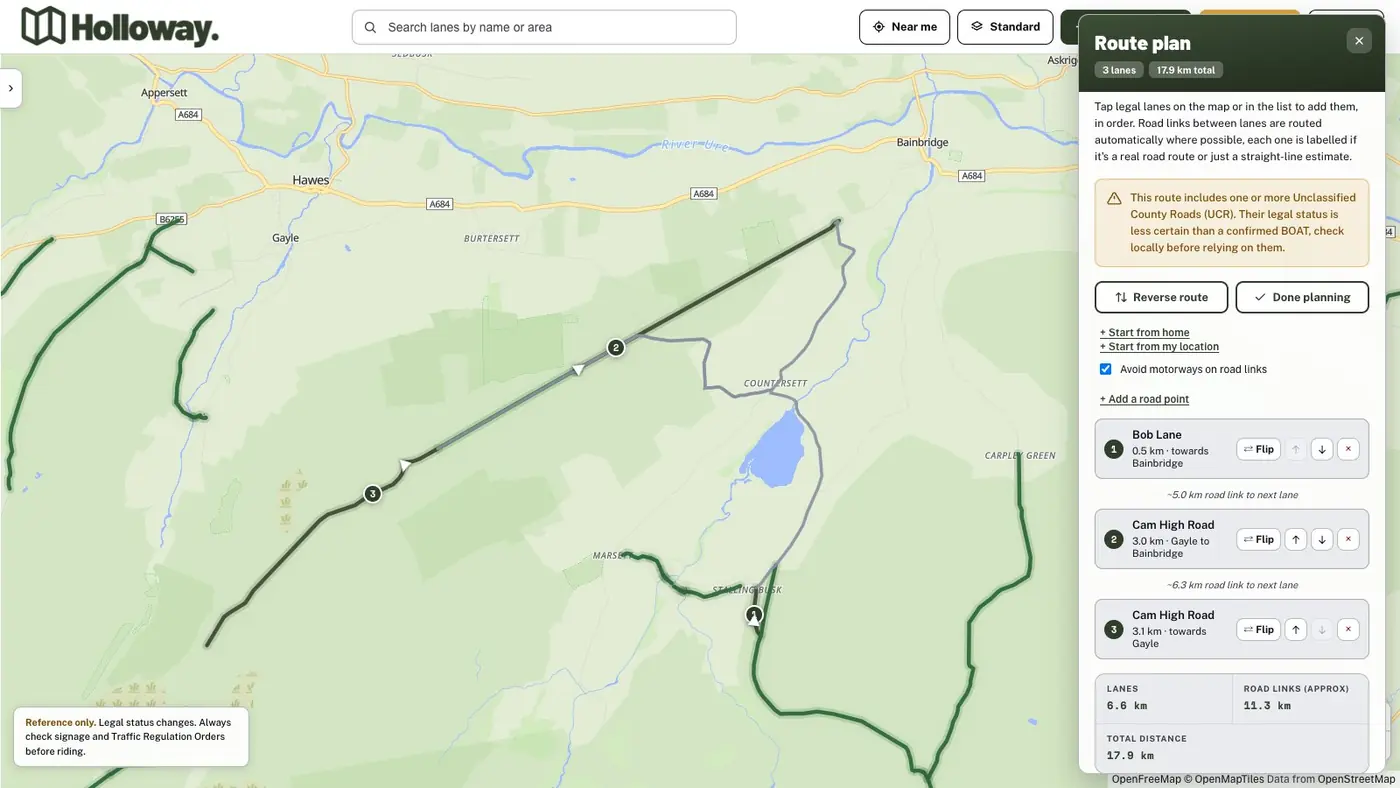
The route plan on a laptop: Reverse route and Done planning at the top, then where to start from and the motorway option.
What's next
The most requested feature is the one you'd expect: pick a start and a finish, and have Holloway suggest a route that takes in as many legal lanes as possible on the way, with a choice between "most lanes" and "most direct". It's a bigger job than anything here, because it has to pick good lanes and never send anyone down one that's closed or not legal for motorcycles. It's at the top of the list.
If you're new to planning on Holloway, our guide to building a route with lanes, road points and sharing covers the rest. Route planning is part of Holloway Premium, £20 a year, and you can try it from the Holloway map.
Found something that gets in the way? Tell us at hollowayapp@gmail.com. Every change in this post started with an email like that.
As always, Holloway's lane data is for reference. Legal status changes, so check signage and current Traffic Regulation Orders before you ride.